Accordion
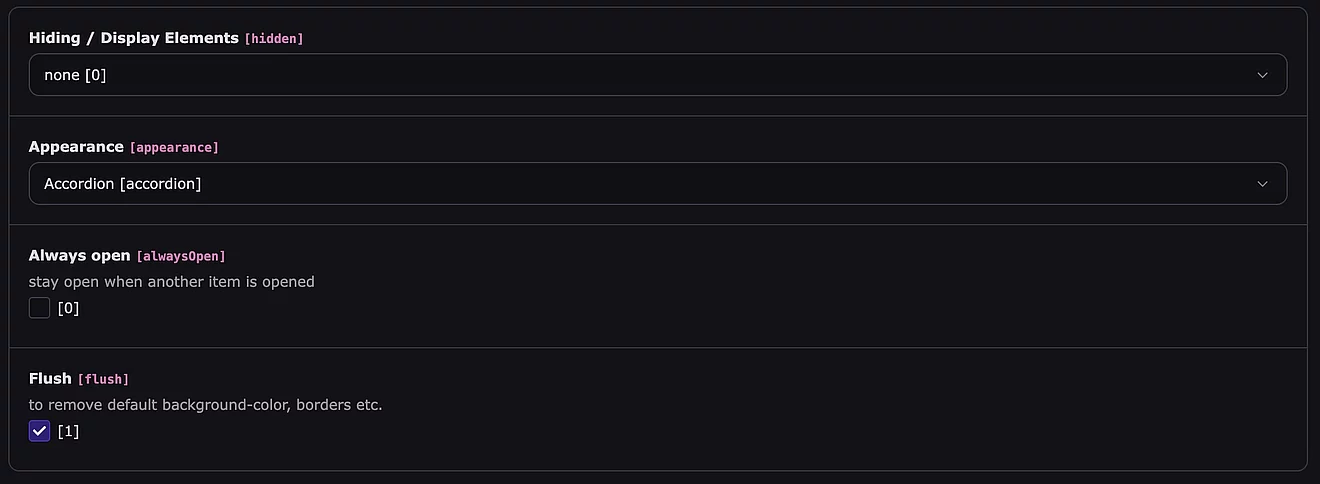
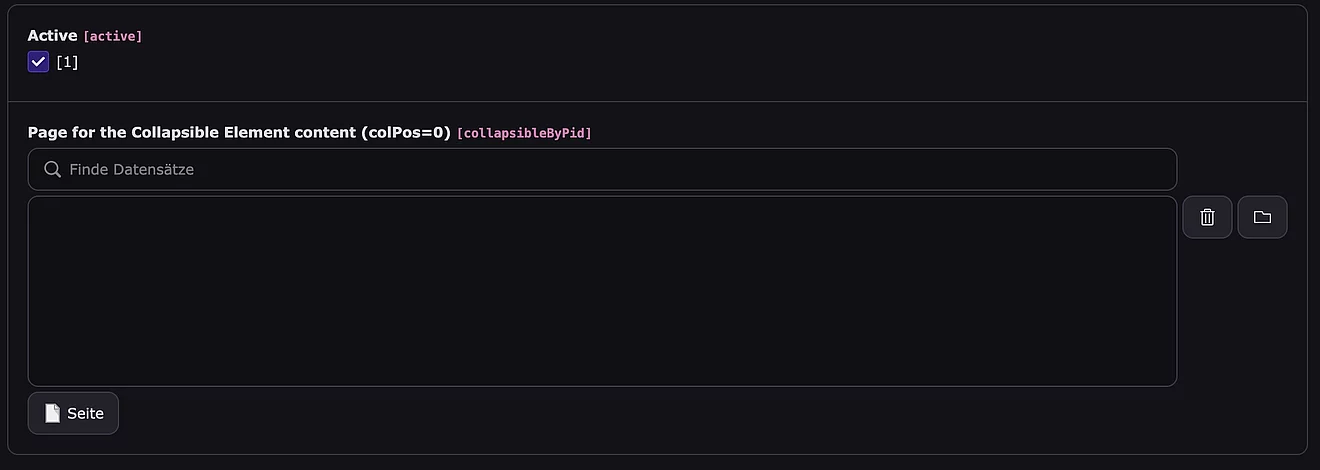

Accordions sind nützlich, wenn du Inhalte platzsparend ein- und ausblenden möchtest.
Zuerst muss ein “Collapsible Container” im Backend erstellt werden.
Collapsible Container (Parent):
Dient als umschließendes div mit einer eindeutigen ID (wichtig für das Bootstrap-Attribut data-bs-parent).
Optionen, wie z. B. "Flush" (randloses Design) oder ob immer nur ein Item gleichzeitig geöffnet sein darf (Auto-Close).
In diesen Container können dann beliebig viele "Collapsible Elemente" erstellt werden.
Collapsible Element (Child):
Jedes "Collapse Elemente" kann beliebig viele Inhaltselemente (text, textmedia etc.) enthalten.
Header-Feld:
Der Titel, der immer sichtbar ist und als Trigger fungiert.
Zustand:
Eine Checkbox "Always open", um das Attribut .show beim ersten Laden der Seite zu setzen.
Inhaltsbereich:
Ein vollwertiger Content-Bereich (colPos), in dem beliebige TYPO3-Inhaltselemente erstellt werden können.
Es können bei Bedarf gesamte Seiten referenziert werden.
Beispiele
This is the first item’s accordion body. It is shown by default, until the collapse plugin adds the appropriate classes that we use to style each element. These classes control the overall appearance, as well as the showing and hiding via CSS transitions. You can modify any of this with custom CSS or overriding our default variables. It’s also worth noting that just about any HTML can go within the .accordion-body, though the transition does limit overflow.
This is the second item’s accordion body. It is shown by default, until the collapse plugin adds the appropriate classes that we use to style each element. These classes control the overall appearance, as well as the showing and hiding via CSS transitions. You can modify any of this with custom CSS or overriding our default variables. It’s also worth noting that just about any HTML can go within the .accordion-body, though the transition does limit overflow.
This is the third item’s accordion body. It is shown by default, until the collapse plugin adds the appropriate classes that we use to style each element. These classes control the overall appearance, as well as the showing and hiding via CSS transitions. You can modify any of this with custom CSS or overriding our default variables. It’s also worth noting that just about any HTML can go within the .accordion-body, though the transition does limit overflow.
This is the first item’s accordion body. It is shown by default, until the collapse plugin adds the appropriate classes that we use to style each element. These classes control the overall appearance, as well as the showing and hiding via CSS transitions. You can modify any of this with custom CSS or overriding our default variables. It’s also worth noting that just about any HTML can go within the .accordion-body, though the transition does limit overflow.
This is the second item’s accordion body. It is shown by default, until the collapse plugin adds the appropriate classes that we use to style each element. These classes control the overall appearance, as well as the showing and hiding via CSS transitions. You can modify any of this with custom CSS or overriding our default variables. It’s also worth noting that just about any HTML can go within the .accordion-body, though the transition does limit overflow.
This is the third item’s accordion body. It is shown by default, until the collapse plugin adds the appropriate classes that we use to style each element. These classes control the overall appearance, as well as the showing and hiding via CSS transitions. You can modify any of this with custom CSS or overriding our default variables. It’s also worth noting that just about any HTML can go within the .accordion-body, though the transition does limit overflow.
Tipps
CSS für +/- Icons
.accordion-button::before,
.accordion .accordion-button::before {
    background-image:none;
    font-family:"Font Awesome 7 Solid";
    font-weight:900 !important;
    content:"\2b";
    height: auto !important;
    padding-right: .75rem;
}
.accordion-button:not(.collapsed)::before,
.accordion .accordion-button:not(.collapsed)::before {
   background-image:none;
   font-family:"Font Awesome 7 Solid";
   font-style:normal;
   font-weight:900 !important;
   content:"\f068";
}
.accordion-button::after {
   display: none !important;
}
SASS-Variablen - Icon Farbe anpassen
$accordion-icon-color: #ff0000;
$accordion-icon-active-color: #00ff00;
Button
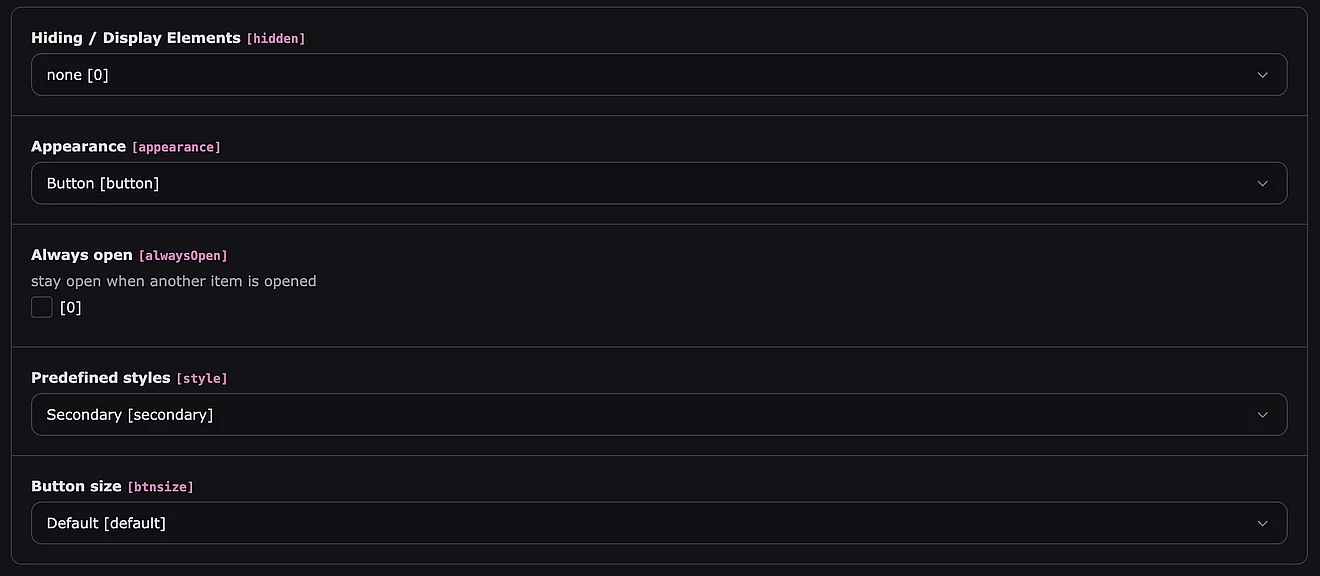
Das JavaScript-Plugin „Collapse“ wird zum Ein- und Ausblenden von Inhalten verwendet.
Als Auslöser dienen hier Buttons, die bestimmten Elementen zugeordnet sind, die Sie umschalten möchten.
This is the first item’s accordion body. It is shown by default, until the collapse plugin adds the appropriate classes that we use to style each element. These classes control the overall appearance, as well as the showing and hiding via CSS transitions. You can modify any of this with custom CSS or overriding our default variables. It’s also worth noting that just about any HTML can go within the .accordion-body, though the transition does limit overflow.
This is the second item’s accordion body. It is shown by default, until the collapse plugin adds the appropriate classes that we use to style each element. These classes control the overall appearance, as well as the showing and hiding via CSS transitions. You can modify any of this with custom CSS or overriding our default variables. It’s also worth noting that just about any HTML can go within the .accordion-body, though the transition does limit overflow.
This is the third item’s accordion body. It is shown by default, until the collapse plugin adds the appropriate classes that we use to style each element. These classes control the overall appearance, as well as the showing and hiding via CSS transitions. You can modify any of this with custom CSS or overriding our default variables. It’s also worth noting that just about any HTML can go within the .accordion-body, though the transition does limit overflow.
Infos: